Take It Easy Help

It sits at the edge of your desk, counting in silence.

Take It Easy is a quiet Pomodoro timer with no background music and no ads. It counts your time and, every so often, leaves a few words on the screen. The only sound it makes is a short chime when time is up. Here’s how to get along with it.

Music stays in your music app.

This app doesn’t play background music, and it won’t stop whatever you’re listening to on its own. Music is left to the app you already use. What you can do is save a playlist or a music app you like, so it’s right there when you sit down to work or step away for a break. Here’s how that goes with an Amazon Music playlist.

STEP 1

Copy a link in Amazon Music

  1. Open the playlist, album or song you’d like to keep you company.
  2. Tap the share button. If you can’t find it, Share is tucked inside the “…” menu.
  3. From the list that appears, choose Copy link. On iPhone it may just say Copy.
Illustration: choosing Copy link in the share sheet Share Copy link
STEP 2

Paste it into Take It Easy

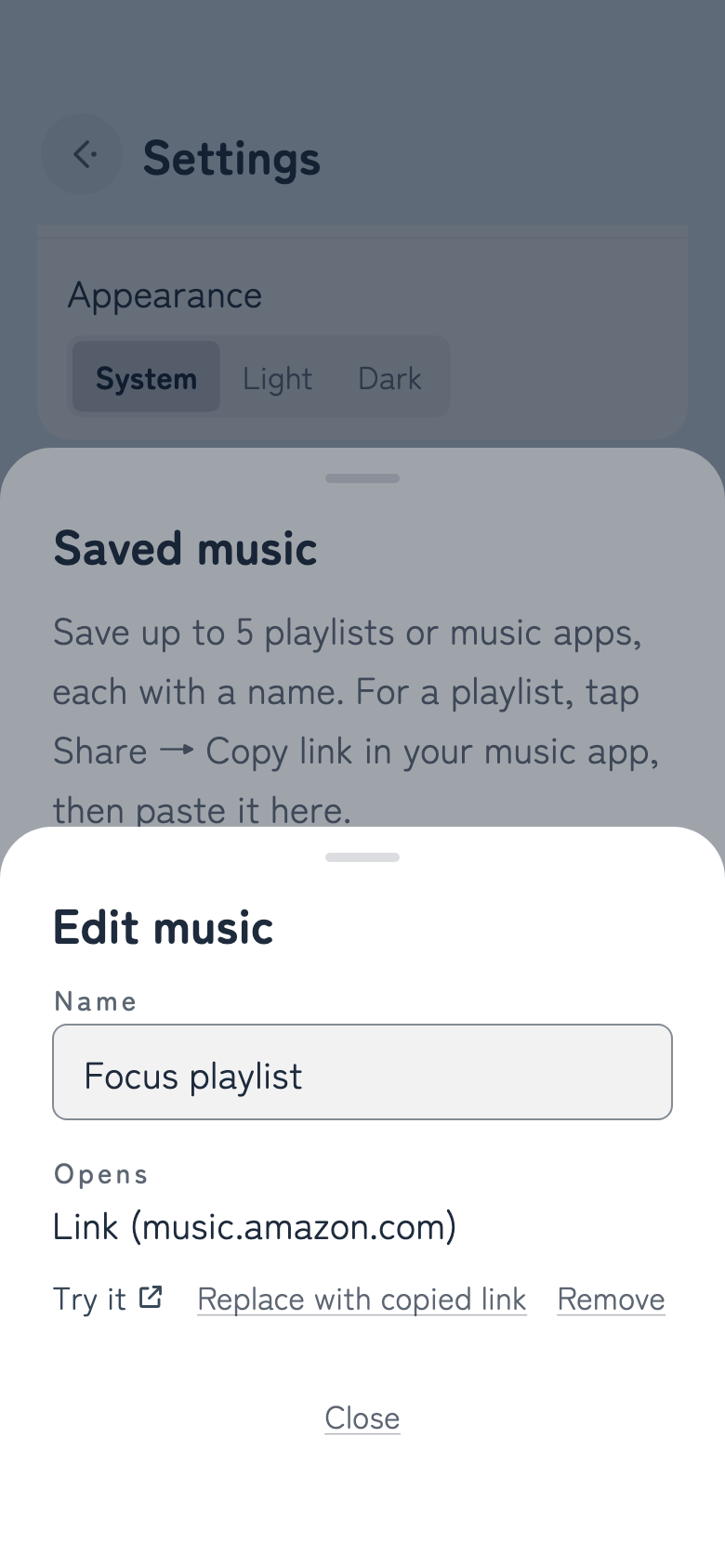
  1. Go to Settings › Saved music and open Add or edit music.
  2. Tap Paste a copied link. The link you just copied drops right in.
  3. Name it whatever you like. “Focus playlist,” “Rainy day,” anything you’ll recognize later.
Edit music. Name: “Focus playlist”. Opens: Link (music.amazon.com). Try it
STEP 3

Open it when you begin

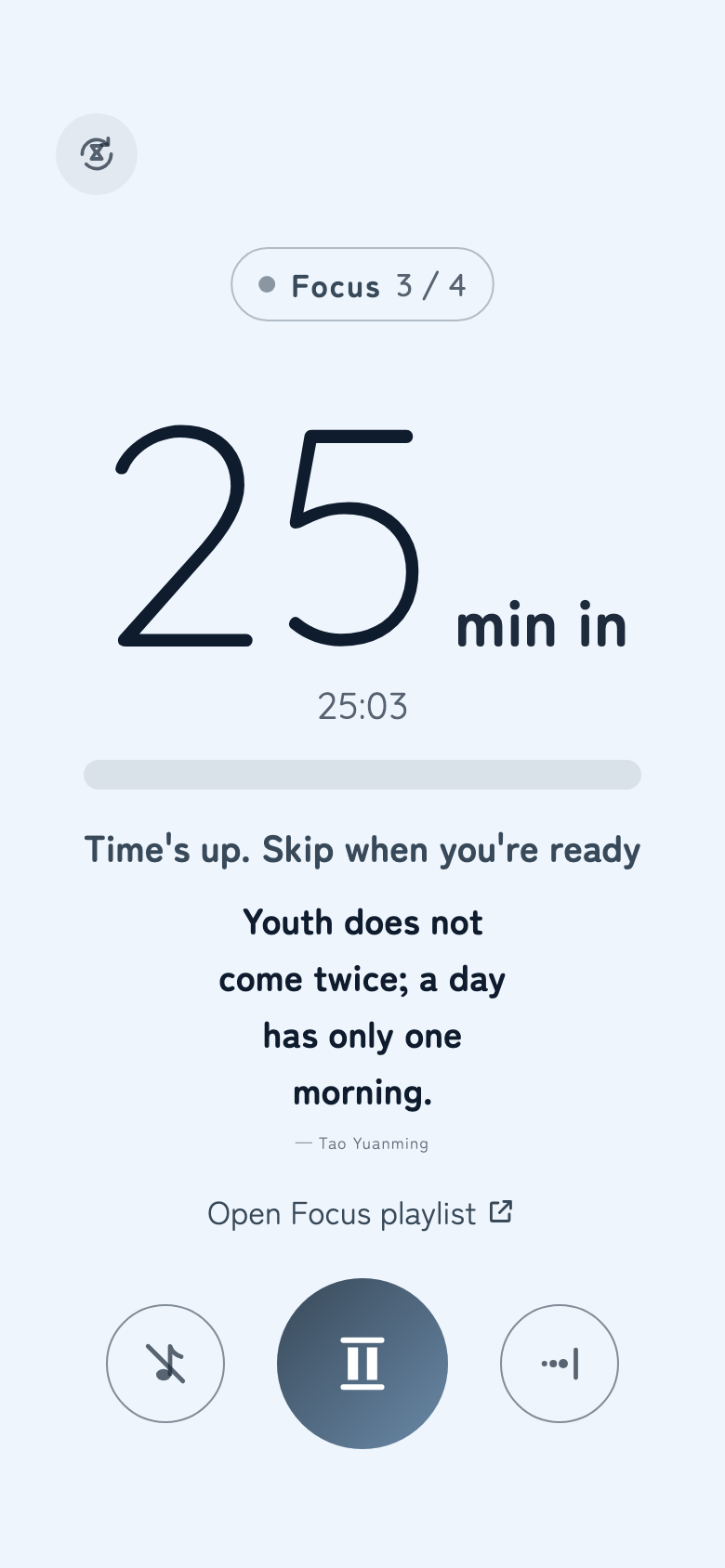
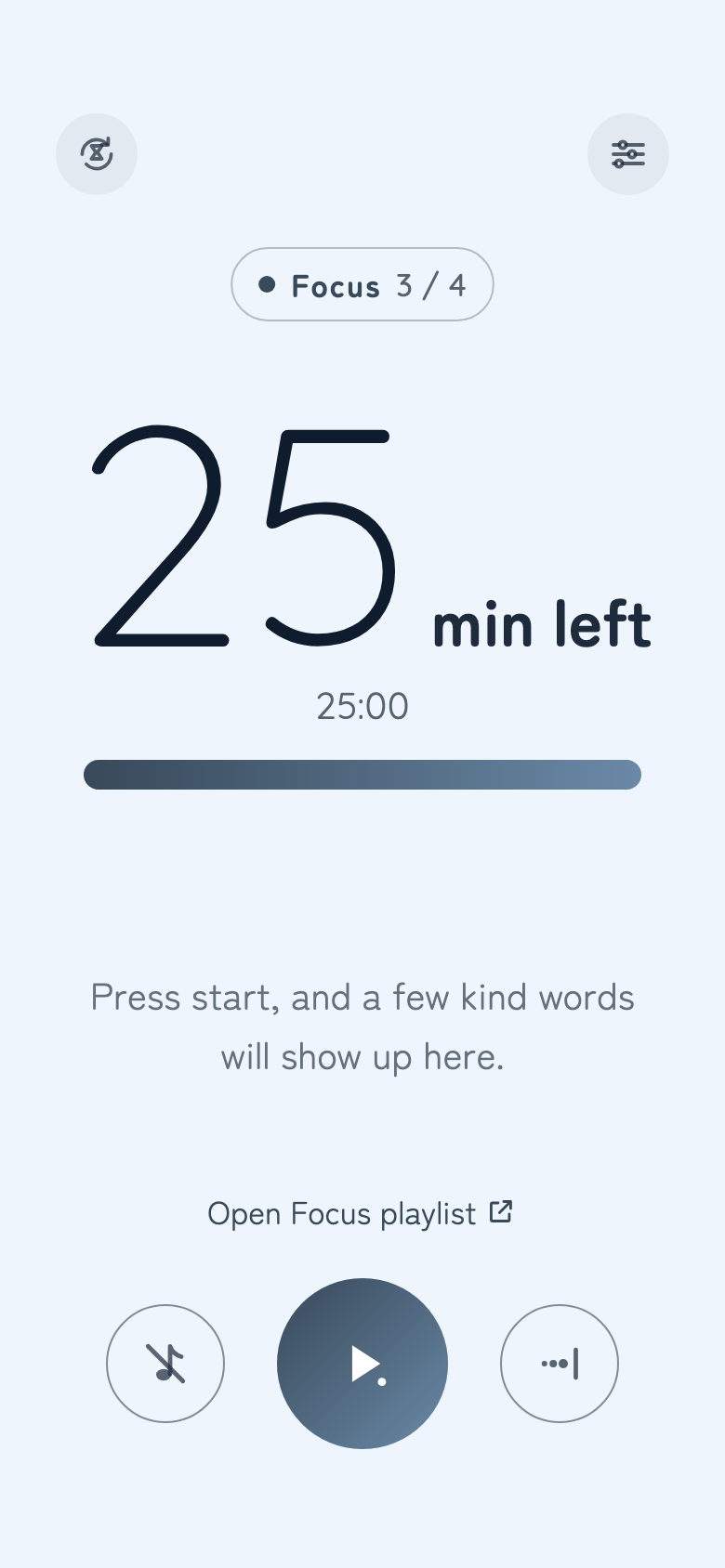
  1. The main screen now shows Open <name>. Tap it and Amazon Music comes up.
  2. When a focus session ends, you’ll also see Open [name] and start. Your break begins and the music opens at the same moment.
  3. Once the music is going, come back to Take It Easy. It keeps playing.
Main screen with Open Focus playlist above the Play button

It doesn’t have to be Amazon Music. Any app that lets you copy a link from its share menu works the same way. Playlists are fine, and so are albums, single songs and stations. You can save up to five, and pick different music for focus and for breaks.

You can also save music without a link. On iPhone, Choose a Music app playlist saves a playlist from the Music app as it is, and opening it starts playback in the Music app. On Android, Choose a music app saves a music app on your phone. That one just opens the app, so press play there.

Your phone decides where a link opens. If the music app is installed, it usually opens there. If it isn’t, or depending on your settings, it may open in the browser instead. If the music doesn’t start on its own, press play in the music app.
Fit the timer to the shape of your day.

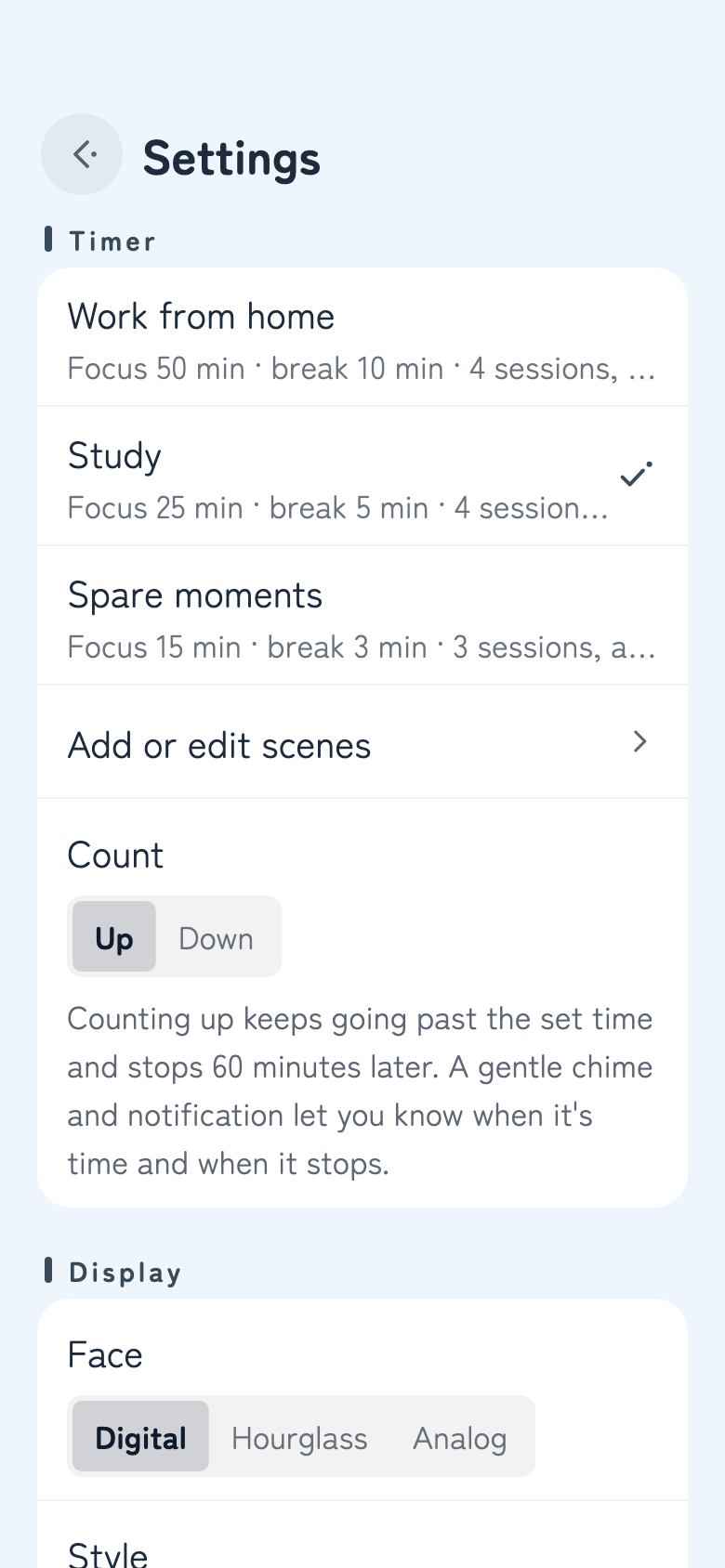
A long day working from home and a fifteen-minute lunch break call for different rhythms. Pick a scene in Settings › Timer, and the focus time, short break, long break and number of sessions all change together.

  • Work from home50 min focus · 10 min break · 4 sessions ≈ 4 h 20 min
  • Study25 min focus · 5 min break · 4 sessions ≈ 2 h 10 min (default)
  • Spare moments15 min focus · 3 min break · 3 sessions ≈ 1 h

Names and times can be changed in Add or edit scenes. You can add your own as well, up to five in all. The three that come with the app can always go back with Restore original times.

Settings › Timer: Work from home, Study (selected), Spare moments, Add or edit scenes

There isn’t much to touch.

Three buttons. After that, set it on your desk and let it be.

Press play to begin

The round button in the middle starts a focus session. The time counts up from zero, and when you reach your goal, a vibration and a chime notification let you know. When you’re at a good stopping point, tap skip on the right to get to the “Nice work!” screen, and start your break from there.

Count up or count down

At first the timer counts up. It keeps going past your goal, so you can wrap up what you’re on (it stops after 60 extra minutes). If you’d rather watch the time left, switch to Down in Settings › Timer › Count. Then the “Nice work!” screen appears the moment time is up.

Skip, or start over

The button on the right moves you along, from focus to break or from break to focus. The button at the top left takes you back to the start of the first focus session. If the timer is running or paused, it checks with you first, so a stray tap doesn’t cost you anything.

Pause your music

The music-note button on the left pauses and resumes music playing in another app. It only does anything when you tap it. On iPhone it appears once you turn on Control the Music app in Settings › Music, and it controls the Music app.

Tap the timer

Some days you don’t want to see numbers, and sometimes you just want a quick look. Tap the timer and the numbers show or hide for a while. Your settings stay as they are.

Words of encouragement

The words in the middle of the screen change quietly every five minutes or so. If you can’t wait, tap anywhere around them and the next line appears.

Settings

Open it from the gear at the top right. To close it, swipe from left to right. While the timer runs, the gear stays out of sight.

Portrait or landscape

If you stand your phone on the desk like a little clock, landscape feels right.

A short chime and a notice.

When time is up, you’ll get a vibration and a gentle chime notification. The chime lasts about ten seconds, and it’s the only sound. The app never plays background music or sound effects.

Session-end notifications

The app asks whether it may send notifications the first time you press play, and the timer starts without waiting for your answer. To change your mind later, go to Settings › Notifications. If it says “Notifications are off,” tap Open system settings and allow them there. The chime plays as the notification sound, so its volume and silent mode follow your phone’s settings.

Daily reminder

Once a day, at the time you choose, it gives you a nudge. If you’ve already finished a session that day, it stays quiet.

Focus mode

If other apps keep tapping you on the shoulder, try your phone’s Focus mode. On iPhone, open Control Center, tap Focus and choose Do Not Disturb or Work. On Android, swipe down twice from the top and tap Do Not Disturb. To still get session-end notifications, add Take It Easy to the allowed apps.

Display & themes

  • Face Choose from digital, hourglass or analog.
  • Style Clear shows an “n min left” you can read from across the room; Modern uses thin digits with tick marks.
  • Show time left Decide, face by face, whether the numbers show.
  • Appearance Light, pure-black dark, or whatever your phone uses.
  • Words of encouragement How often they change is set in Settings › Words.

Support tips

There are no ads here, and no account to sign up for. If the app has earned a place on your desk, you can send a tip from Settings › Other › Support tip. It helps keep development going.

Each tip is a one-time payment. Paying doesn’t change a single feature, so there’s nothing to restore later.

A coffeeLunchA treat

FAQ

The timer doesn’t make a sound

When time is up, it lets you know with a gentle chime notification. If you don’t hear it, check that notifications are allowed for Take It Easy and that your phone isn’t on silent or in a Focus mode (see Session-end notifications).

I’d rather not hear the chime

Turn off Session-end notification in Settings › Notifications, and you’ll get just a vibration. To keep the notification but lose the sound, turn off sounds for Take It Easy in your phone’s notification settings.

Will it stop my music?

No. The app only pauses music when you tap the music-note button. While the chime plays, some phones briefly lower the music volume, but it keeps playing.

It says “No link found”

What you copied doesn’t seem to include a link starting with https://. Copy the link again from your music app’s share menu, then tap Paste a copied link once more. If there’s extra text around the link, only the link itself is saved.

The link opens in the browser

Your phone decides which app opens a link. If the music app is installed and allowed to open its links, that’s where it goes. Try reinstalling the music app, or check your phone’s “Open by default” settings.

The screen turns off

While the timer is running on the main screen, the screen stays on. When it’s stopped, or when Settings or another app is open, the screen turns off the way it normally would.

Does the timer keep going while I use other apps?

Yes. The app works out when the session will end and counts toward that moment, so opening other apps or turning off the screen won’t throw it off. When time’s up, a notification lets you know.

Where is my data stored?

Your settings, saved music and past totals stay on your phone and nowhere else. The privacy policy has the details.

Contact

Thoughts on using it and reports of anything broken are both read with gratitude. If you can, mention your phone model, OS version and the app version (it’s at the very bottom of Settings). It makes tracking down problems much easier.

support@haroworks.com